Why Your PDFs Are So Heavy (And Why It Matters)
Ever tried to email a PDF and got that scary "file too large" message? It's like trying to stuff a Thanksgiving turkey into a lunchbox. PDFs get fat because of high-resolution images, embedded fonts, and unnecessary metadata. When you have ten, twenty, or a hundred PDFs, each one being a few MB adds up fast. That's why learning to compress multiple PDF files at once isn't just convenient—it's a survival skill.
Big files slow down your website, eat up your storage space, and annoy your clients. If you run a business, you know that speed matters. A fast-loading site makes people happy and helps you rank higher on Google. Speaking of which, if you're in the service industry, check out our guide on Website Architecture for Veterinary Clinics for even more performance tips.
The Old Way vs. The New Way
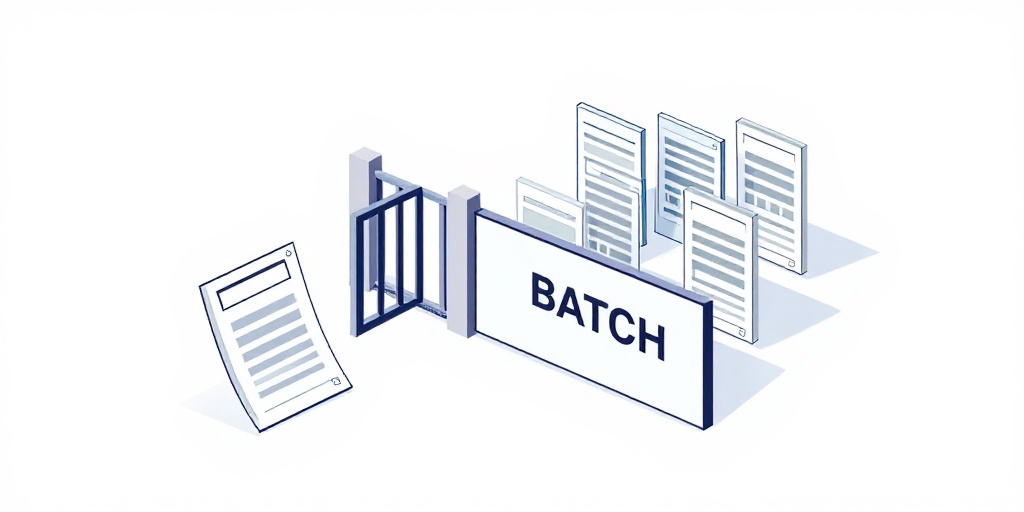
In the dark ages, people would right-click a PDF, hit "Compress," wait forever, and then repeat for every single file. That's like mowing your lawn with nail clippers. The smarter way is batch compression—doing all your files at once.
Here's a quick comparison:
- One-by-one: Open tool, upload file, wait, download, repeat. Takes ages.
- Batch compression: Drag all files in, click once, grab your zipped folder of tiny PDFs.
Which one sounds better? Exactly. Batch compression also keeps your quality high because good tools use smart algorithms that only remove what's not needed. Plus, if you're into SEO, compressing your PDFs is part of a bigger picture. Learn how How to Rank My HVAC Company on Google Maps uses fast-loading assets to win local searches.
How to Compress Multiple PDFs at Once (Step by Step)
Ready to become a compression ninja? Here's the no-fluff process:
- Gather your PDFs: Put all the files you want to compress in one folder. No need to rename or sort—just pile them up.
- Use the right tool: Go to our PDF Compressor (it's totally free). You don't need to install anything, and it works on any device.
- Upload in bulk: Drag and drop your entire folder or select multiple files. The tool will show you each file's original size.
- Choose compression level: Pick from 'Maximum' (smallest size, great for web) or 'Balanced' (good quality for printing).
- Hit compress: One click. The tool crunches all PDFs at once. Usually under a minute for dozens of files.
- Download: You get a single ZIP file containing all your compressed PDFs. Extract them, and done!
That's it. Seriously. You just saved yourself hours. And since smaller files load faster, your website's performance gets a boost. For more ways to speed up your site, read our Free Technical SEO Audit Online guide.
Frequently Asked Questions
Quick answers to structural technical gaps
Will compressing multiple PDFs at once ruin the quality?
Not if you use a good tool. Our batch compressor uses smart algorithms that remove extra data (like thumbnails) without hurting text or image quality. You can pick 'Balanced' for prints or 'Maximum' for web.
Can I compress PDFs without uploading to a server?
Yes! Our tool runs entirely in your browser using client-side processing. Your files stay on your computer—no uploads means no privacy worries. For peace of mind, try our Free Technical SEO Audit Online too.
How many PDFs can I compress at once?
There's no hard limit, but we recommend up to 50 files per batch for the best performance. Each file can be up to 100MB. If you have more, just run another batch. It's still way faster than doing them one by one.
Do I need to download any software to compress multiple PDFs?
Nope. Our tool is 100% online and free. No signup, no downloads, no hidden fees. Just open the Batch PDF Compressor and go.
Keep Reading
Execute This Strategy Instantly
Use our free Batch PDF Compressor right now to shrink dozens of PDFs in one click—no upload limits, no quality loss.
Launch Free Tool